Getting Started With Sprite Sheets
Sprite sheets are where game animation lives. Instead of loading dozens of individual image files, you pack multiple frames into one image and reference them by position. It’s faster, cleaner, and honestly just makes more sense when you’re trying to keep your game running smooth.
Think of it like a film strip — each frame of your character’s walk cycle sits next to the previous one. Your code reads the right section of the image based on which frame you want to display. Most professional games use this approach because it cuts down file requests dramatically.
Why Sprite Sheets Matter
- Reduces HTTP requests from 30+ images down to 1
- Easier to manage all animation frames in one file
- Better performance on mobile devices
- Simplifies texture memory usage in the browser
- Keeps your code organized and readable

Educational Content Note
The techniques and code examples in this article are for educational purposes. Implementation details vary based on your specific game engine, performance requirements, and target platforms. Always test thoroughly on your target devices before shipping.
Animating Your Sprites
Animation comes down to timing and frame selection. You’ve got your sprite sheet with, say, 8 frames of a walking animation. Your code needs to know which frame to display and when to move to the next one. That’s where a frame index and a timer come in.

Here’s the basic flow: track elapsed time since the last frame change. When that time exceeds your frame duration (usually 60-100ms per frame), bump the frame index up and reset your timer. When you hit the last frame, loop back to zero.
A typical approach uses two variables — one tracks which frame you’re on, another tracks how much time has passed since you last updated. Most games run at 60 frames per second, so your sprite update happens 60 times per second too. The frame data tells the renderer which portion of your sprite sheet to draw.
Key concept: Frame duration determines animation speed. A 100ms frame duration gives you 10 frames per second of animation. If you want faster movement, drop it to 50ms. Slower? Go 150ms. You’re controlling the illusion of motion.
Collision Detection Fundamentals
Collision detection is how your game knows when things touch. Without it, your character walks through walls, bullets pass through enemies, and everything feels broken. There’s no single “right” way — it depends on your game type, how many objects you’re tracking, and how precise you need to be.
Common Collision Methods
Bounding Box (AABB)
Simplest approach. Treat each sprite as a rectangle. Check if rectangles overlap. Fast and works great for most games. You’re comparing x, y, width, and height values.
Circle Collision
For rounder objects. Calculate distance between centers. If distance is less than the sum of radii, they’re colliding. More accurate than boxes for round shapes.
Pixel-Perfect
Most precise but slowest. Actually checks if non-transparent pixels touch. Used when you need exact collision, like puzzle games.
Building Collision Detection Into Your Game
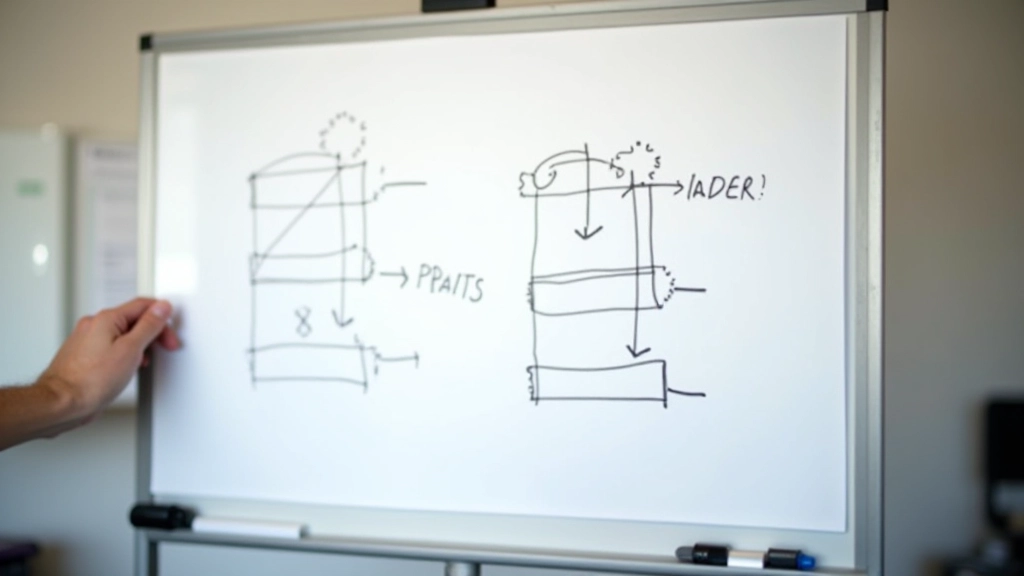
Start with bounding box collision. It’s fast, it’s simple, and it handles 90% of game scenarios perfectly fine. You’re checking if the hitbox of object A overlaps with the hitbox of object B every frame.
The actual math is straightforward. For two rectangles to NOT collide, one must be completely to the left, right, above, or below the other. If none of those conditions are true, they’re colliding. You’ll check this dozens or hundreds of times per second depending on how many objects you have.
Performance matters here. If you’re checking every object against every other object, that’s O(n²) complexity. With 50 objects, you’re doing 2,500 checks per frame. Optimize by using spatial partitioning — divide your game world into a grid and only check collisions within nearby cells.
Most games don’t do pixel-perfect collision for everything. You use bounding boxes for initial checks, then only run expensive pixel-perfect collision if the boxes overlap. This layered approach keeps performance solid while maintaining accuracy where it matters.
Practical Tips From Experience
After shipping games using these systems, here’s what actually matters in the real world:
Test on Real Devices
Emulators lie. Sprite animation that runs smooth in your development environment might stutter on an actual phone. Test early, test often on the actual hardware your users will play on.
Debug Collision Visually
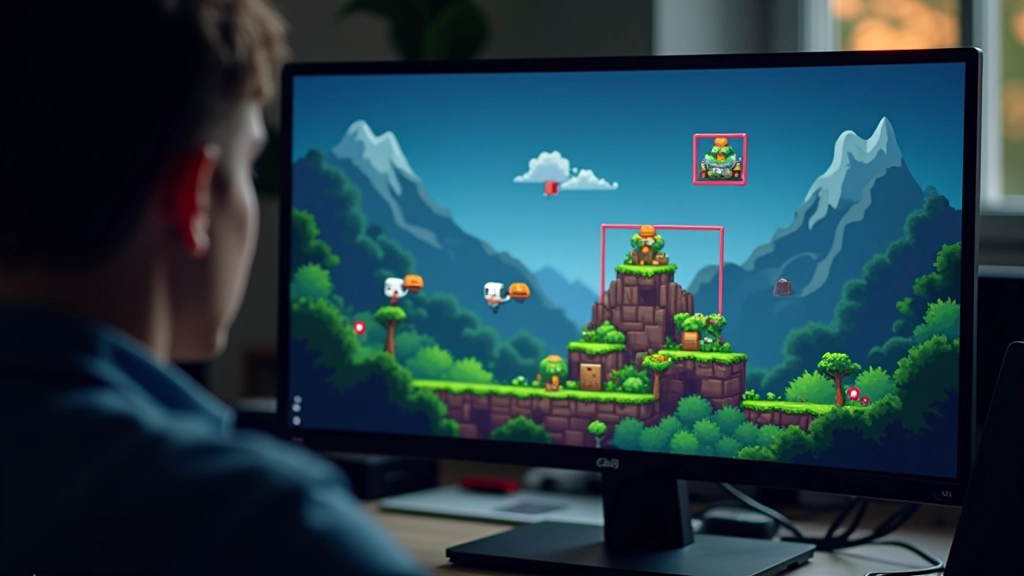
Draw your hitboxes during development. It’ll immediately show you if collision detection is off. Hide them before you ship, but during testing, seeing those boxes is invaluable.
Sprite Sheet Organization
Keep frames organized in consistent rows or grids. Document your sprite sheet layout in code comments. Future you (or your team) will appreciate it when you’re adding new animations.
Frame Rate Independence
Don’t tie animation speed to frame rate. Use delta time — the actual elapsed time since the last frame — instead. This way your animation plays at the same speed whether it’s 30 fps or 60 fps.
Next Steps
You’ve got the fundamentals now. Sprite animation is just frame timing, and collision detection is just math. Start simple with bounding boxes, get comfortable with the basics, then optimize when you need to. Most indie games don’t require pixel-perfect collision or super advanced spatial partitioning — solid bounding box detection gets you 90% of the way there.
The best way to learn is by building something. Create a small game with a moving character, add some obstacles, implement collision detection, and see how it feels. That hands-on experience beats reading about it any day.